
HeyPico API Documentation
Overview
HeyPico provides three APIs. Which one should you use?
LLM API (REST)
The simplest way to integrate AI into your application. Standard REST endpoints compatible with the OpenAI SDK. Use this if you just want to make chat completions or list models using familiar tools (curl, OpenAI Python/JS SDK, LangChain, etc.).
Base URL: https://api.heypico.ai/v1
Protocol: REST (OpenAI-compatible)
Auth: Bearer token (hp_live_...)
Best for: Simple chat, model access, OpenAI SDK compatibility
MCP LLM (JSON-RPC)
A full AI agent accessed via JSON-RPC 2.0. Unlike the REST API, this maintains conversation memory, can generate images, manage Google Calendar, search the web, analyze images, and more. Use this when you need the complete HeyPico AI agent capabilities.
Base URL: https://public-api.heypico.ai/mcp/llm
Protocol: JSON-RPC 2.0
Auth: Bearer token (hp_live_...)
Best for: Multi-turn conversations, multi-modal tasks, agent workflows
MCP Automation (JSON-RPC)
Control Android devices programmatically via JSON-RPC 2.0. Use this to automate taps, scrolls, text input, app management, and device control for testing or AI-powered mobile assistance.
Base URL: https://public-api.heypico.ai/mcp/automation
Protocol: JSON-RPC 2.0
Auth: Bearer token (hp_live_...)
Best for: Android device automation, testing, mobile AI agents
Authentication
All API requests require authentication using an API key with the hp_live_ prefix.
Header:
Authorization: Bearer hp_live_xxxxxxxxxxxxxxxxxxxx
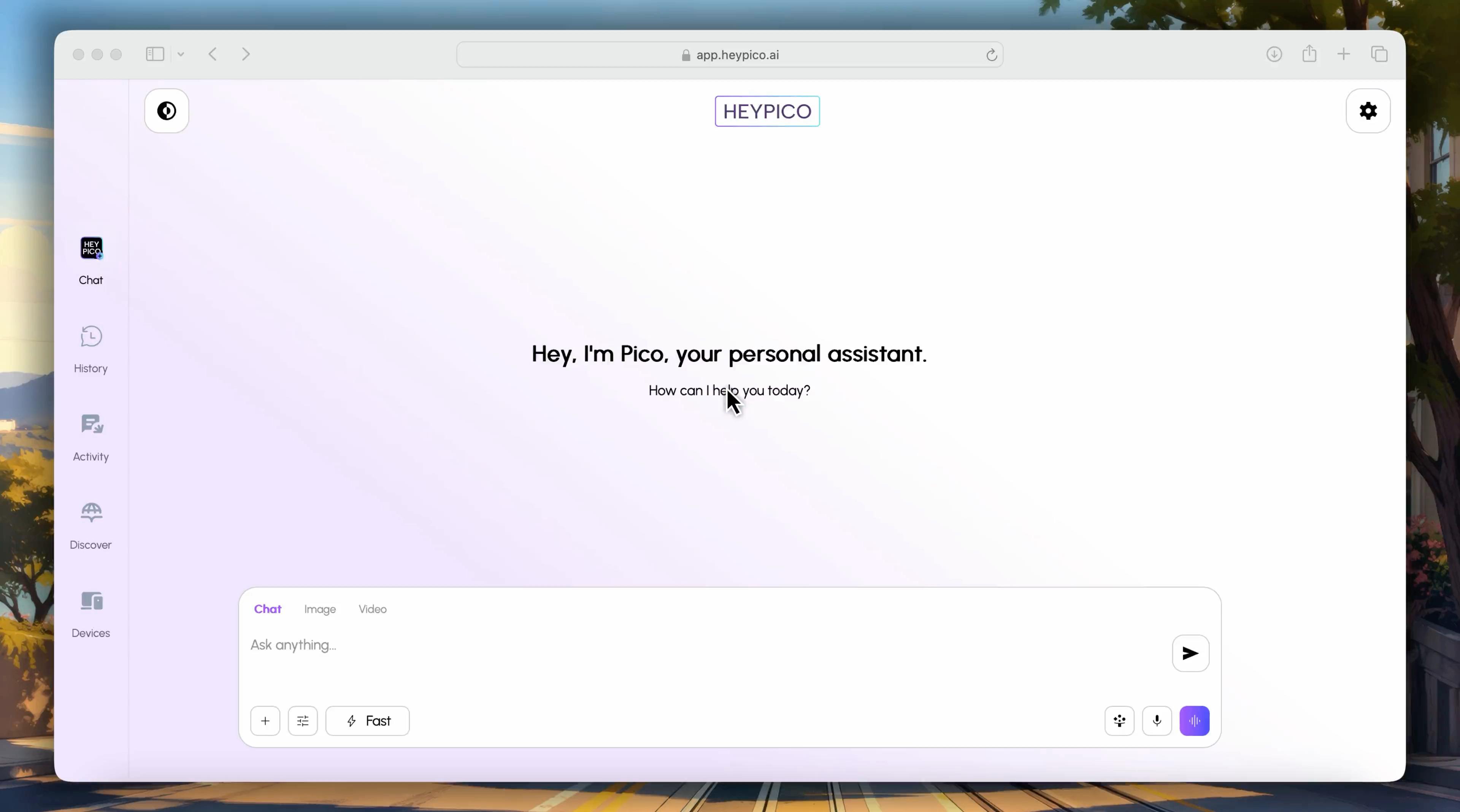
How to get an API key:
- Open the HeyPico App
- Go to Settings → API Keys
- Generate a new API key
- Copy the Key
Keep your API key secure. Never expose it in client-side code or version control.
Quickstart
Get up and running with HeyPico APIs in under a minute.
Prerequisites
Before you begin, make sure you have:
- A HeyPico account — Download the HeyPico app and sign up
- An API key — Follow the Authentication steps above
- curl (or any HTTP client) installed on your machine
1. Verify Your API Key
Run this command to list available models. If you see a JSON response, your key is working:
curl https://api.heypico.ai/v1/models \
  -H "Authorization: Bearer hp_live_xxxxxxxx"
Expected result: A 200 OK response with a list of models. If you get a 401, your API key is missing or incorrect.
2. Make Your First Chat Completion
Send a simple message to an AI model:
curl https://api.heypico.ai/v1/chat/completions \
  -H "Authorization: Bearer hp_live_xxxxxxxx" \
  -H "Content-Type: application/json" \
  -d '{
    "model": "pico-1-0",
    "messages": [
      {"role": "user", "content": "Say hello in one word"}
    ]
  }'
Expected result: A 200 OK response with the model's reply inside choices[0].message.content.
3. Verify Your Setup
  # List models — checks auth and connectivity
curl -s https://api.heypico.ai/v1/models \
  -H "Authorization: Bearer hp_live_xxxxxxxx" | head -c 100

  # Chat — checks the full request pipeline
curl -s https://api.heypico.ai/v1/chat/completions \
  -H "Authorization: Bearer hp_live_xxxxxxxx" \
  -H "Content-Type: application/json" \
  -d '{"model": "pico-1-0", "messages": [{"role": "user", "content": "Say hello"}]}' | head -c 200
Both commands should return successful JSON responses. You are now ready to use HeyPico APIs.
LLM API (REST / OpenAI-compatible)
The LLM API provides an OpenAI-compatible interface to HeyPico's AI models. You can use any OpenAI SDK, library, or tool by simply changing the base_url to https://api.heypico.ai/v1.
1. List Models
Returns a list of available AI models.
GET /v1/models
Request:
curl https://api.heypico.ai/v1/models \
  -H "Authorization: Bearer hp_live_xxxxxxxx"
Response (200 OK):
{
  "object": "list",
  "data": [
    {
      "id": "pico-1-0",
      "object": "model",
      "created": 1741771234,
      "owned_by": "heypico",
      "context_window": 200000,
      "max_output_tokens": 8192
    }
  ]
}
Each model includes context_window (max input tokens) and max_output_tokens (max generation tokens) to help you plan requests and avoid unexpected truncation.
Available Models:
The list above is generated from GET /v1/models, so it always reflects what the API serves today. Each model shows its context window, max output tokens, and price per 1M tokens (USD).
Run GET /v1/models to see all currently available models.
Note: The model IDs shown above are public aliases. You can also use the full model names from
GET /v1/models(e.g.claude-opus-4-6,claude-sonnet-4-5). Unknown model IDs will return a400error — there is no silent fallback.
2. Chat Completion
Creates a chat completion with the specified model.
⚠️ GPT 5.6 family limitation: For tool calling with GPT 5.6 models (
gpt-5-6-luna,gpt-5-6-sol,gpt-5-6-terra), use the Responses API instead. Tool calls via/v1/chat/completionsrequirereasoning_effort: "none"for these models.
POST /v1/chat/completions
Request:
curl https://api.heypico.ai/v1/chat/completions \
  -H "Authorization: Bearer hp_live_xxxxxxxx" \
  -H "Content-Type: application/json" \
  -d '{
    "model": "pico-1-0",
    "messages": [
      {"role": "system", "content": "You are a helpful assistant."},
      {"role": "user", "content": "What is the capital of France?"}
    ]
  }'
Parameters:
| Parameter | Type | Required | Description |
|---|---|---|---|
model | string | No | Model ID. Falls back to default if omitted or unknown |
messages | array | Yes | Array of message objects with role and content |
max_tokens | integer | No | Maximum tokens to generate |
temperature | number | No | Sampling temperature (0.0–1.0) |
stream | boolean | No | If true, response is streamed via SSE |
reasoning_effort | string | No | For reasoning models: "low", "medium", "high", or "none" |
tools | array | No | Array of tool definitions for function calling |
tool_choice | string/object | No | "auto", "none", "required", or specific function |
Messages format:
{
  "role": "system" | "user" | "assistant",
  "content": "string"
}
Response (200 OK):
{
  "id": "chatcmpl-a1b2c3d4",
  "object": "chat.completion",
  "created": 1741771234,
  "model": "pico-1-0",
  "choices": [
    {
      "index": 0,
      "message": {
        "role": "assistant",
        "content": "The capital of France is Paris."
      },
      "finish_reason": "stop"
    }
  ],
  "usage": {
    "prompt_tokens": 23,
    "completion_tokens": 7,
    "total_tokens": 30
  }
}
3. Streaming
Add "stream": true to get SSE (Server-Sent Events) response:
curl -N https://api.heypico.ai/v1/chat/completions \
  -H "Authorization: Bearer hp_live_xxx" \
  -H "Content-Type: application/json" \
  -d '{
    "model": "pico-1-0",
    "messages": [{"role": "user", "content": "Hello"}],
    "stream": true
  }'
Response format:
data: {"choices":[{"delta":{"role":"assistant"},"index":0}]}
data: {"choices":[{"delta":{"content":"Hello"},"index":0}]}
data: {"choices":[{"delta":{"content":"!"},"index":0}]}
data: {"choices":[{"delta":{},"finish_reason":"stop","index":0}]}
data: [DONE]
3. Responses API
OpenAI Responses API compatible endpoint. This endpoint is ideal for Codex, OpenAI Agents SDK, and tools that default to the Responses wire API.
Supported models with full Responses API features (tool calls, reasoning, streaming):
gpt-5-6-luna, gpt-5-6-sol, gpt-5-6-terra, gpt-5-5
All other models (GPT 5.4, DeepSeek, Claude, Gemini, etc.) are also supported — the request is automatically translated to chat completions format internally. Tool calls and streaming work, but use the chat completions format under the hood.
POST /v1/responses
Request:
curl https://api.heypico.ai/v1/responses \
  -H "Authorization: Bearer hp_live_xxxxxxxx" \
  -H "Content-Type: application/json" \
  -d '{
    "model": "gpt-5-6-luna",
    "input": "What is the capital of France?"
  }'
4. Credits Balance
Returns subscription quota, free quota, or purchased token balance.
GET /v1/credits/balance
Request:
curl https://api.heypico.ai/v1/credits/balance \
  -H "Authorization: Bearer hp_live_xxxxxxxx"
Response (free user):
{
  "data": {
    "id": "user-uuid",
    "label": "Free",
    "free_quota": {
      "limit": 200000,
      "used": 45000,
      "remaining": 155000
    },
    "purchased_tokens": {
      "total_purchased": 50000,
      "remaining": 30000
    }
  }
}
Response (subscribed user):
{
  "data": {
    "id": "subscription-uuid",
    "label": "HeyPico Pro Annual",
    "subscription": {
      "plan": "heyPico pro annual",
      "token_quota": 6800000,
      "token_used": 1898671,
      "token_remaining": 4901329
    },
    "purchased_tokens": {
      "total_purchased": 0,
      "remaining": 45000
    }
  }
}
5. Tool Calling
All models support tool calling via the standard OpenAI tools format.
Request:
curl https://api.heypico.ai/v1/chat/completions \
  -H "Authorization: Bearer hp_live_xxxxxxxx" \
  -H "Content-Type: application/json" \
  -d '{
    "model": "sonnet-4-5",
    "messages": [{"role": "user", "content": "What is the weather in Tokyo?"}],
    "tools": [{
      "type": "function",
      "function": {
        "name": "get_weather",
        "description": "Get weather for a location",
        "parameters": {
          "type": "object",
          "properties": {
            "location": {"type": "string", "description": "City name"}
          },
          "required": ["location"]
        }
      }
    }]
  }'
Response:
{
  "choices": [{
    "message": {
      "role": "assistant",
      "tool_calls": [{
        "id": "call_abc123",
        "type": "function",
        "function": {
          "name": "get_weather",
          "arguments": "{"location":"Tokyo"}"
        }
      }]
    },
    "finish_reason": "tool_calls"
  }]
}
Limitations:
- GPT 5.6 models via
/v1/chat/completions: Tool calls requirereasoning_effort: "none". For tool calling + reasoning, use/v1/responsesinstead. - All other models: Tool calls work natively via
/v1/chat/completions.
LLM API Usage Examples
from openai import OpenAI client = OpenAI( base_url="https://api.heypico.ai/v1", api_key="hp_live_xxxxxxxx" ) # List models for m in client.models.list(): print(m.id) # Chat completion response = client.chat.completions.create( model="pico-1-0", messages=[{"role": "user", "content": "Hello!"}] ) print(response.choices[0].message.content) # Streaming stream = client.chat.completions.create( model="amazon.nova-pro-v1:0", messages=[{"role": "user", "content": "Tell me a story"}], stream=True ) for chunk in stream: print(chunk.choices[0].delta.content or "", end="")
Anthropic-compatible API
HeyPico also exposes the LLM API in the Anthropic Messages format, so you can use it directly with Claude Desktop, Claude Code (CLI), or any Anthropic SDK client.
Base URL: https://api.heypico.ai/anthropic
Protocol: REST (Anthropic Messages API)
Auth: x-api-key header (hp_live_...) or Authorization: Bearer
Endpoints
| Method | Path | Description |
|---|---|---|
| GET | /anthropic/v1/models | List available models |
| POST | /anthropic/v1/messages | Create a message (supports streaming) |
| GET | /anthropic/v1/credits/balance | Check token balance |
1. List Models
curl https://api.heypico.ai/anthropic/v1/models \
  -H "x-api-key: hp_live_xxxxxxxxxxxxxxxxxxxx"
2. Chat Completion
curl https://api.heypico.ai/anthropic/v1/messages \
  -H "Content-Type: application/json" \
  -H "x-api-key: hp_live_xxxxxxxxxxxxxxxxxxxx" \
  -d '{
    "model": "pico-1-0",
    "max_tokens": 1024,
    "messages": [
      {"role": "user", "content": "Say hello"}
    ]
  }'
3. Streaming
Add "stream": true to the request body to receive Server-Sent Events (SSE) in the Anthropic streaming format.
curl -N https://api.heypico.ai/anthropic/v1/messages \
  -H "Content-Type: application/json" \
  -H "x-api-key: hp_live_xxxxxxxxxxxxxxxxxxxx" \
  -d '{
    "model": "pico-1-0",
    "max_tokens": 1024,
    "stream": true,
    "messages": [
      {"role": "user", "content": "Count to 5"}
    ]
  }'
4. Credits Balance
Returns subscription quota, free quota, or purchased token balance.
curl https://api.heypico.ai/anthropic/v1/credits/balance \
  -H "x-api-key: hp_live_xxxxxxxxxxxxxxxxxxxx"
Response format identical to OpenAI-compatible /v1/credits/balance.
Supported Parameters
model— a public model ID from/models(e.g.pico-1-0,opus-4-6,sonnet-4-5). Short names likeclaude-haikuare also accepted for compatibilitymessages— conversation history (supportstext,tool_use,tool_resultblocks)system— system promptmax_tokens— maximum output tokenstemperature,top_k,top_p— sampling parametersstop_sequences— custom stop sequencesstream— enable SSE streamingtools,tool_choice— tool calling
Setup: Claude Desktop
- Open Claude Desktop → Settings → Developer (or edit the config file directly).
- Configure the connection to HeyPico:
{
  "apiKey": "hp_live_xxxxxxxxxxxxxxxxxxxx",
  "anthropicBaseUrl": "https://api.heypico.ai/anthropic"
}
- Restart Claude Desktop. The model list will be fetched from
/anthropic/v1/modelsautomatically.
Note: You can use any valid HeyPico API key (
hp_live_...). The gateway resolves model aliases and automatically routes to capable models, including tool calls.
Setup: Claude Code (CLI)
export ANTHROPIC_BASE_URL="https://api.heypico.ai/anthropic"
export ANTHROPIC_AUTH_TOKEN="hp_live_xxxxxxxxxxxxxxxxxxxx"
Then run claude as usual. All chat and tool calls go through HeyPico's gateway.
Tip: For development/testing use
https://dev-api.heypico.ai/anthropicwith a dev API key.
MCP LLM API (JSON-RPC)
The MCP LLM API provides access to HeyPico's AI agent with full capabilities via the JSON-RPC 2.0 protocol.
Agent Features
- JSON-RPC 2.0 Protocol — Standard-based communication
- Conversation Memory — Session-based conversation history
- Multi-Modal — Text and image analysis support
- Full Capabilities — Access to all HeyPico AI features
LLM Endpoint
https://public-api.heypico.ai/mcp/llm
Protocol Format
All requests use JSON-RPC 2.0:
{
  "jsonrpc": "2.0",
  "id": 1,
  "method": "method_name",
  "params": {}
}
Available Tool
heypico_agent
Execute AI agent with full capabilities.
Method: tools/call
Parameters:
{
  "name": "heypico_agent",
  "arguments": {
    "message": "Your message to the AI agent",
    "sessionId": "optional-session-id",
    "newSession": false
  }
}
Fields:
message(required): Message to send to the HeyPico AI agentsessionId(optional): Session ID for conversation memorynewSession(optional): Set totrueto create a new session
MCP LLM Usage Examples
# Basic request curl -X POST https://public-api.heypico.ai/mcp/llm -H "Content-Type: application/json" -H "Authorization: Bearer hp_live_xxxxxxxx" -d '{ "jsonrpc": "2.0", "id": 1, "method": "tools/call", "params": { "name": "heypico_agent", "arguments": { "message": "Generate an image of a sunset over the ocean" } } }' # With session memory curl -X POST https://public-api.heypico.ai/mcp/llm -H "Content-Type: application/json" -H "Authorization: Bearer hp_live_xxxxxxxx" -d '{ "jsonrpc": "2.0", "id": 1, "method": "tools/call", "params": { "name": "heypico_agent", "arguments": { "message": "What was the last image I asked you to generate?", "sessionId": "user-123-session" } } }'
Agent Capabilities
The HeyPico AI agent can perform:
- Image Generation — Create images from text descriptions
- Google Calendar — Manage calendar events
- Google Sheets — Read and write spreadsheet data
- Email — Send emails
- Web Search — Search the internet for information
- Weather — Check weather conditions
- Image Analysis — Analyze images from URLs
- General AI — Answer questions, write content, assist with tasks
MCP Automation API (JSON-RPC)
The MCP Automation API enables automated interaction with Android devices for testing, automation workflows, and AI-powered mobile assistance.
Automation Features
- JSON-RPC 2.0 Protocol — Standard-based communication protocol
- HTTP Streamable Transport — Efficient streaming for real-time interactions
- 38+ Automation Tools — Comprehensive Android automation capabilities (30 public + 8 hidden/advanced)
Automation Endpoint
https://public-api.heypico.ai/mcp/automation
Companion App
To use the MCP Automation API, you need the HeyPico Companion App installed on your Android device. This app acts as a bridge between the API and your device, executing automation commands.
Download & Install
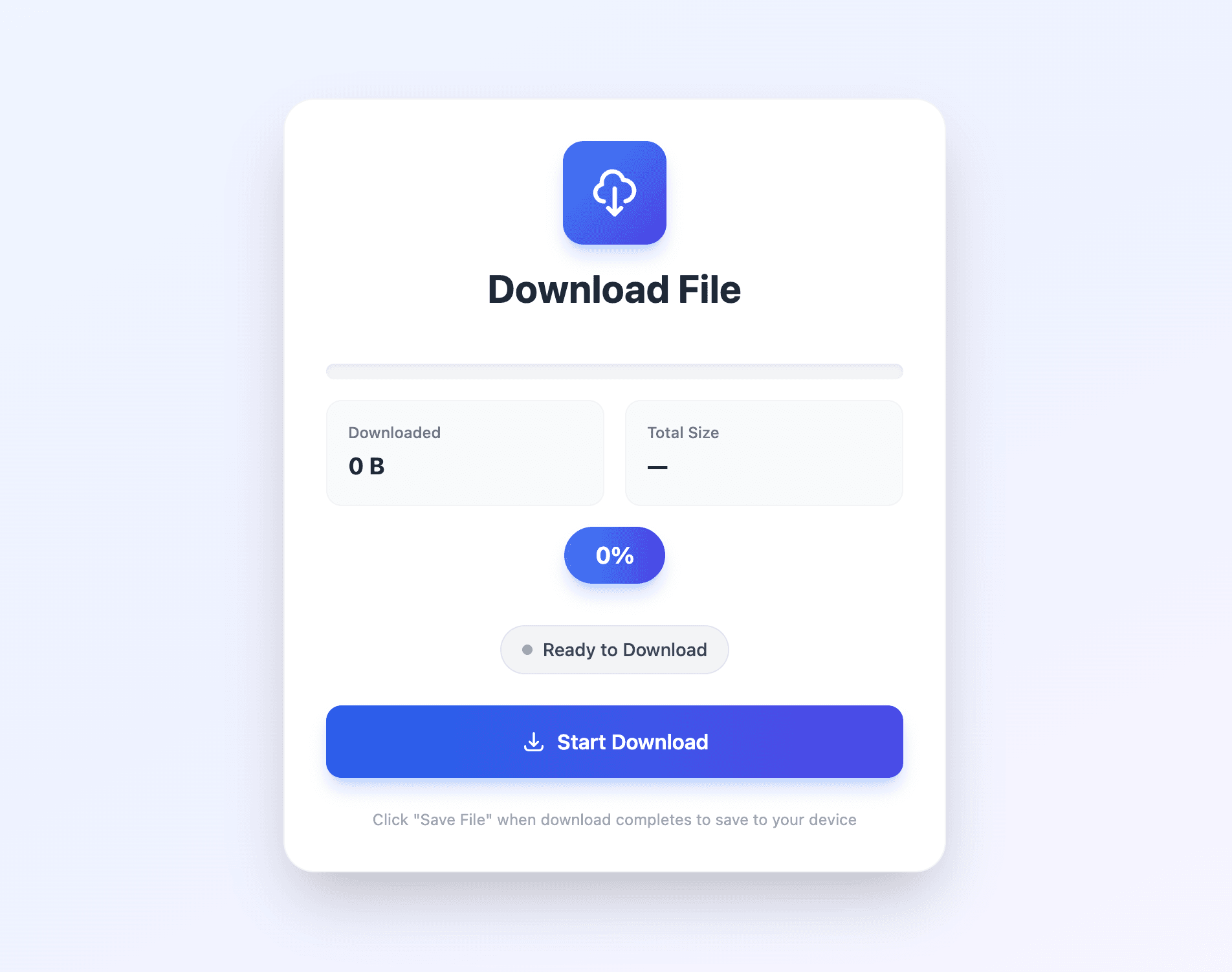
Note: If you purchased a HeyPico tablet bundle, the Companion App is already installed. Skip to Permissons below.
On your own Android device:
- Visit https://download.heypico.ai/manual/companion-app-latest/
- Download the APK file
- Before installing, go to Settings → Security → Play Protect and turn off Scan apps with Play Protect
- Open the downloaded APK and tap Install
Required Permissions
The app needs several permissions to control your device. Follow the in-app guide for each one:
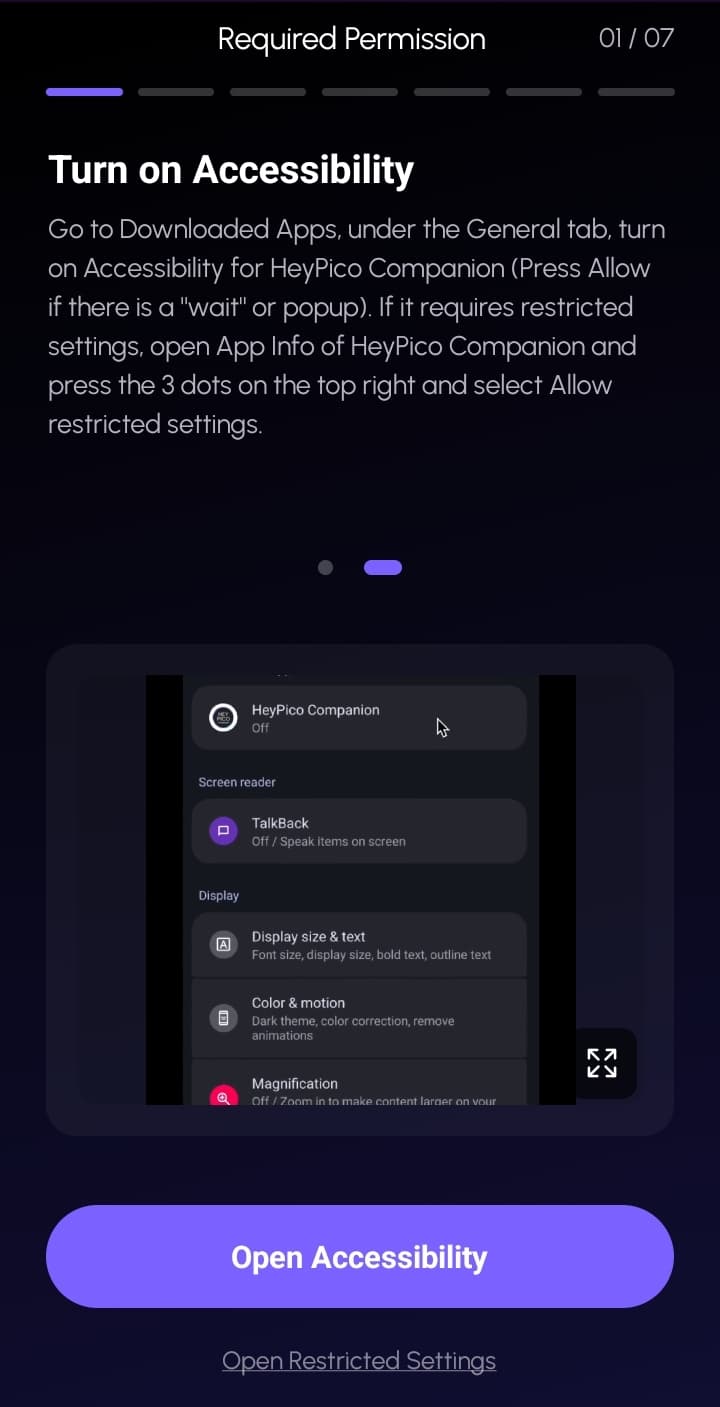
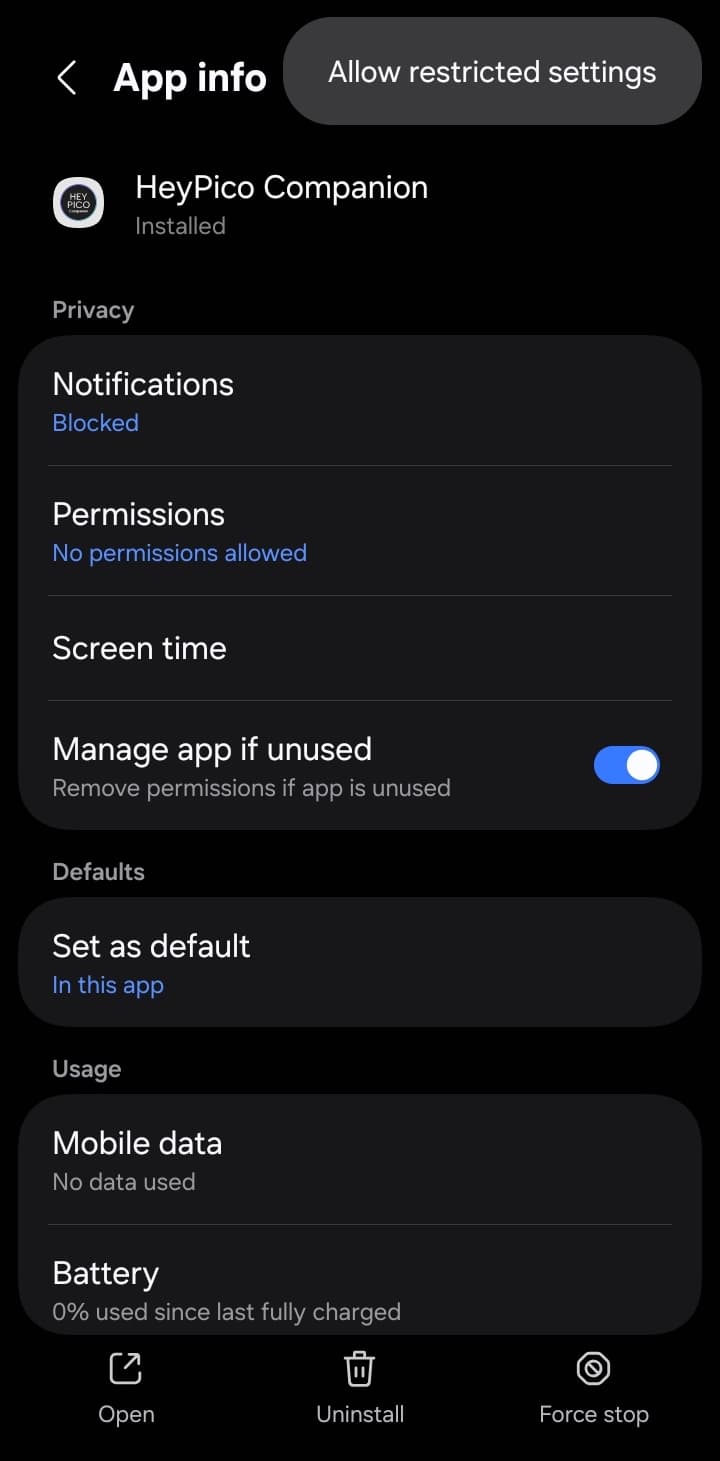
Accessibility & Restricted Settings — Lets HeyPico see and control your screen:
- Tap Open Accessibility in the app
- Turn on the toggle for HeyPico Companion
- If denied, enable Restricted Settings from App Info → ⋮ → Allow Restricted Settings, then retry
- When Android asks for full control, tap Allow

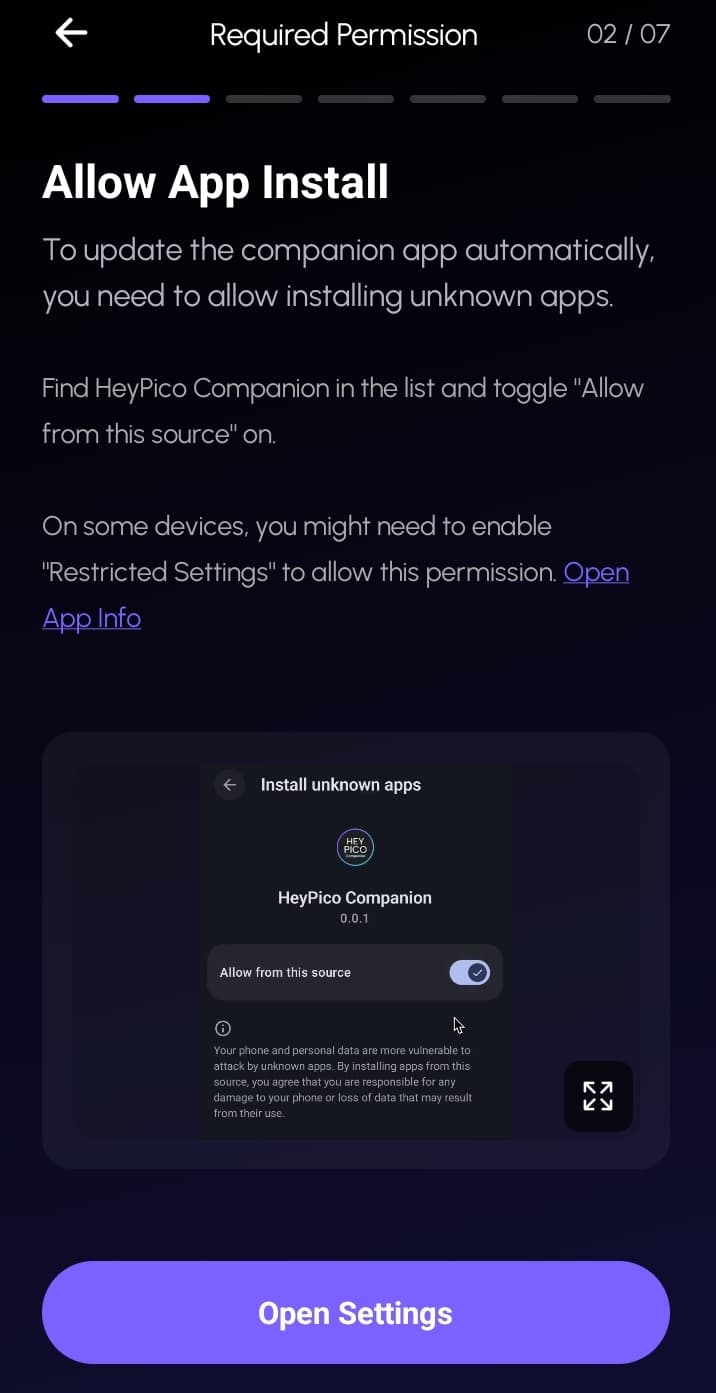
App Installation — Allows the companion app to update itself:
- Tap Open Settings in the app
- Find HeyPico Companion in the Install unknown apps list
- Turn on Allow from this source
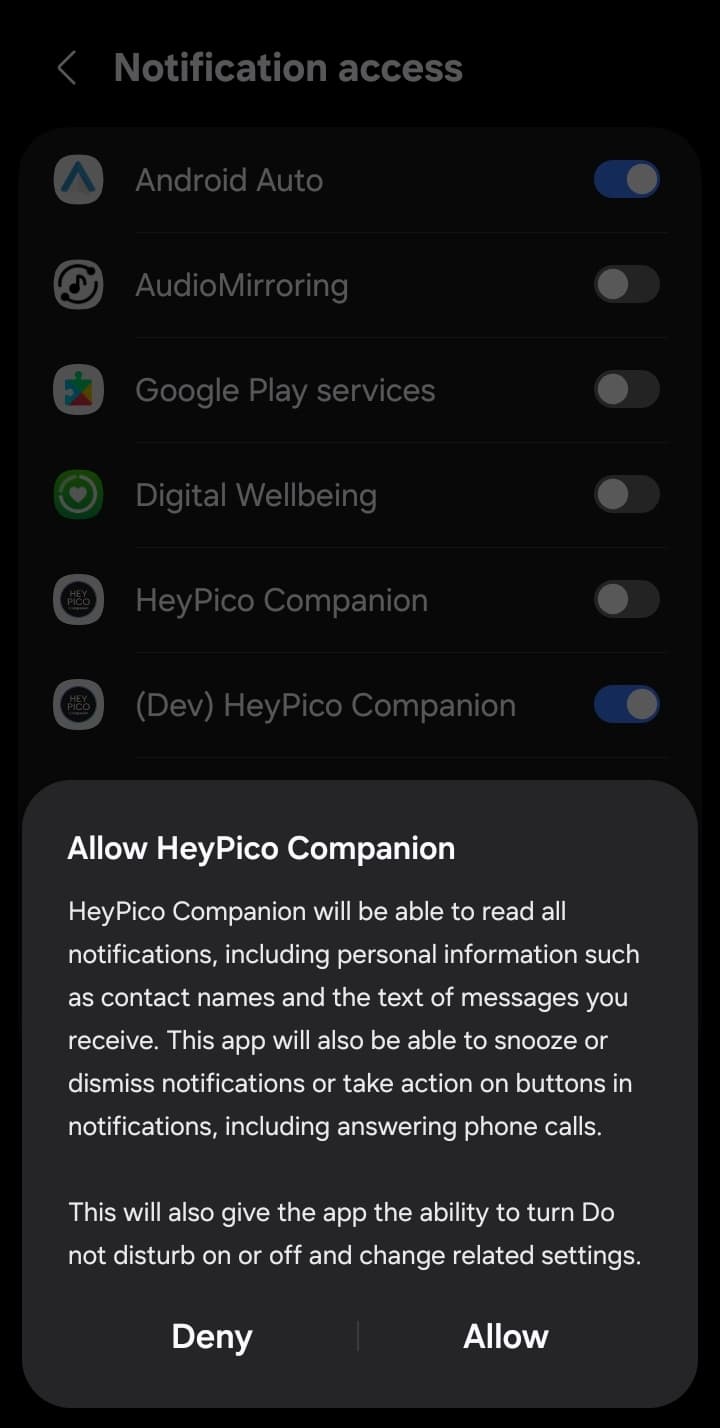
Notifications — Lets HeyPico read and act on notifications:
- Tap Open Notification Settings in the app
- Find HeyPico Companion under Notification access
- Turn on the toggle and tap Allow
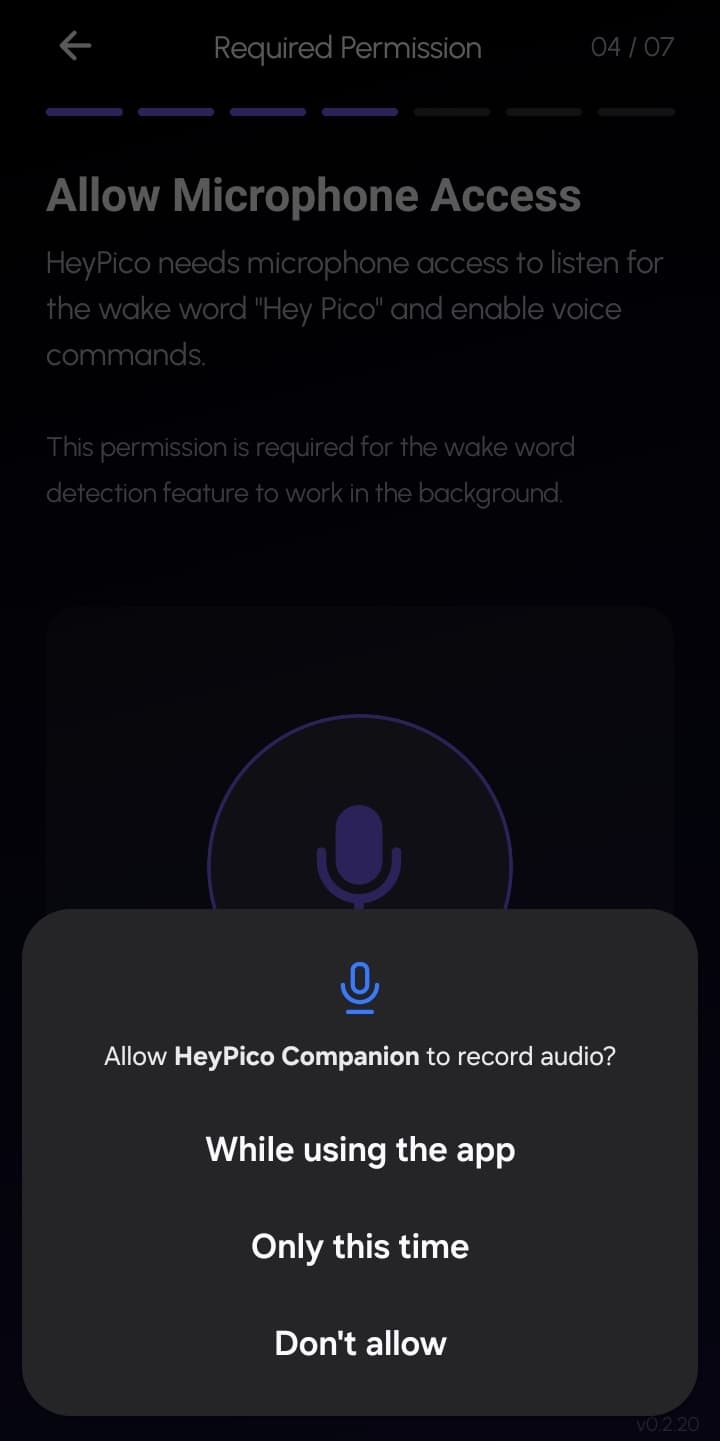
Microphone — Enables voice commands:
- Tap Allow Microphone in the app
- Choose While using the app
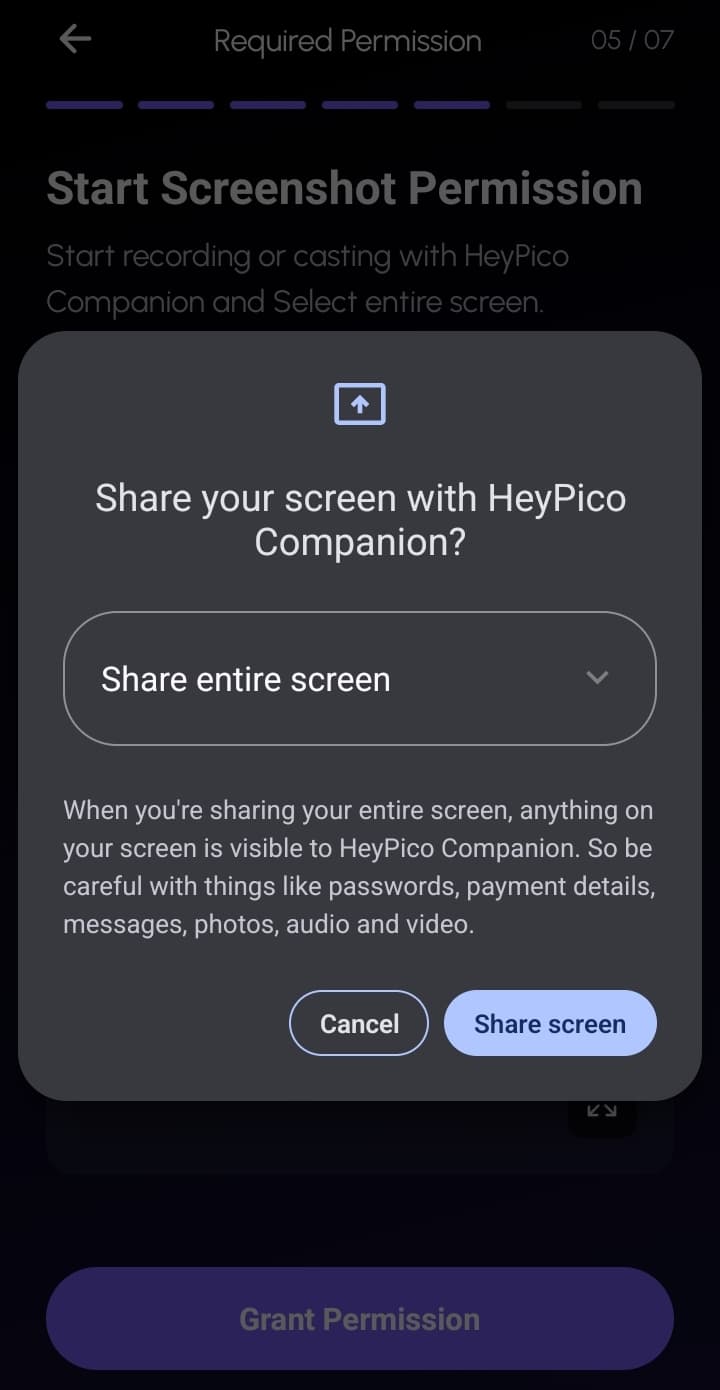
Screen Sharing — Lets HeyPico see your screen:
- Tap Grant Permission in the app
- Choose Share entire screen → Share screen
- ⚠️ Avoid entering passwords or payment details while sharing
Wake Lock — Keeps the connection alive:
- Tap Activate Wake Lock in the app
- Allow ignore battery optimizations for HeyPico Companion
Confirm Connection
Once all permissions are granted, the app shows a green "Connected" indicator. Keep it running in the background while using the Automation API.
Requirements:
- Android 8.0 (Oreo) or higher
- Active internet connection
- Companion app must stay alive — use
android_wake_and_unlockif the screen turns off
The companion app only receives commands from your HeyPico API key. It does not send personal data to HeyPico servers.
Core Methods
List Tools
Get all available automation tools.
Method: tools/list
Parameters:
includeHidden(optional): Set totrueto include hidden/advanced tools
Call Tool
Execute a specific automation tool.
Method: tools/call
Parameters:
name: Tool name (e.g.,android_tap)arguments: Tool-specific parameters
Available Tools
Basic Interaction (8 tools):
android_tap— Tap at screen coordinates (x, y)android_scroll— Scroll in direction (up/down/left/right)android_swipe— Swipe between coordinatesandroid_back— Press back buttonandroid_home— Press home buttonandroid_long_press— Long press at coordinatesandroid_double_tap— Double tap at coordinatesandroid_swipe_from— Directional swipe from point
Text Input (3 tools):
android_input_text— Input text to focused fieldandroid_enter— Press enter keyandroid_paste— Paste clipboard content
Element Finding & Interaction (9 tools):
android_get_ui_elements— Get full UI hierarchyandroid_find_element— Find elements by textandroid_click_element— Click element with waitandroid_find_by_selector— Find by multiple criteriaandroid_click_by_selector— Click by selector with waitandroid_wait_for_element— Wait for element to appearandroid_input_text_by_selector— Input text by selectorandroid_dump_element_xml— Dump element XML with stability checkandroid_share_image— Share images to apps
Visual & Debugging (4 tools):
android_show_grid— Show coordinate grid overlayandroid_hide_grid— Hide coordinate gridandroid_get_screen_info— Get screen dimensionsandroid_screenshot— Capture screenshot
App Management (5 tools):
android_open_app— Open app by name or packageandroid_reset_current_app— Hard reset app to home pageandroid_close_app— Close app by packageandroid_get_installed_apps— List all appsandroid_find_app— Search for apps
Volume & Media Control (4 tools):
android_set_volume— Set volume for streamandroid_set_brightness— Set screen brightness (0-100)android_adjust_volume— Adjust volume (raise/lower/mute)android_media_control— Control media playback
Device Control (3 tools):
android_wake_and_unlock— Wake screen and unlock deviceandroid_open_url— Open URL in browserandroid_get_device_status— Get battery, volume, and device info
Clock & Alarms (2 hidden tools):
android_set_alarm— Set an alarm in Clock appandroid_open_alarms— Open alarms list screen
Voice Chat (1 tool):
android_end_voice_chat— End active HeyPico voice chat session
Total: 30 public tools + 8 hidden tools = 38 tools
Workflow Example
Typical automation workflow sequence:
- Wake and unlock — Prepare device (
android_wake_and_unlock) - Open app — Launch target application (
android_open_app) - Wait for element — Ensure UI is ready (
android_wait_for_element) - Interact — Perform actions (tap, swipe, input text, etc.)
- Verify — Check results (
android_get_ui_elements)
MCP Automation Usage Examples
# List available tools curl -X POST https://public-api.heypico.ai/mcp/automation -H "Content-Type: application/json" -H "Authorization: Bearer hp_live_xxxxxxxx" -d '{ "jsonrpc": "2.0", "id": 1, "method": "tools/list", "params": {} }' # Tap at coordinates curl -X POST https://public-api.heypico.ai/mcp/automation -H "Content-Type: application/json" -H "Authorization: Bearer hp_live_xxxxxxxx" -d '{ "jsonrpc": "2.0", "id": 1, "method": "tools/call", "params": { "name": "android_tap", "arguments": { "x": 500, "y": 1000 } } }'
Saved Automation Features (Automation Library)
Automations saved from the Playground / Library support extras on top of raw device tools:
- AI filter gate — each step can carry
ai_filter: { prompt, on_fail: skip|stop }. The LLM verdicts PASS (run), FAIL +skip(step completed as skipped), or FAIL +stop(remaining steps skipped, run ends). Fail-open: empty prompt or unavailable LLM means the step runs normally. - AI behavior —
promptSettings.promptAddon(max 2000 chars, agent runs only),layerPriority, and pinnedskills(max 10). Preview the effective prompt without running the device:
curl https://api.heypico.ai/automations/<id>/try-prompt -H "Authorization: Bearer hp_live_xxxxxxxx" -H "Content-Type: application/json" -d '{"input": "cheapest ride from Bedok to HarbourFront"}'
- Chat triggers — name a saved automation in chat to replay it on-device (library-first), or schedule it ("run at 8am daily"). Strict matching avoids running the wrong automation.
Error Handling
All errors follow a consistent format.
LLM API Error Response:
{
  "error": {
    "message": "Human-readable error description.",
    "type": "invalid_request_error",
    "param": null,
    "code": "invalid_api_key"
  }
}
MCP API Error Response (JSON-RPC):
{
  "jsonrpc": "2.0",
  "id": 1,
  "error": {
    "code": -32603,
    "message": "Internal error"
  }
}
Common Error Codes
| HTTP / JSON-RPC | Code | Description |
|---|---|---|
| 401 | invalid_api_key | Missing, invalid, or expired API key |
| 403 | insufficient_quota | Token quota exhausted |
| 400 | invalid_request | Invalid request body |
| 500 / -32603 | internal_error | Internal server error |
| — | -32700 | Parse error (Invalid JSON) |
| — | -32600 | Invalid request |
| — | -32601 | Method not found |
| — | -32602 | Invalid parameters |
Troubleshooting
401 Unauthorized
Symptoms: 401 response with invalid_api_key error.
Solutions:
- Make sure your API key starts with
hp_live_ - Check that you are including the
Authorization: Bearerheader correctly - Generate a new key in the HeyPico app if the current one is expired
- See Authentication for instructions on getting a key
403 Insufficient Quota
Symptoms: 403 response with insufficient_quota error.
Solutions:
- Free accounts have 200,000 lifetime Pico tokens — check your usage in the app
- Subscribe to a plan for a monthly token allowance
- Top up with additional tokens in the app
400 Bad Request
Symptoms: 400 response with invalid_request error.
Solutions:
- Ensure your request body is valid JSON
- Verify that the
messagesarray is not empty - Check that
roleis one of:system,user,assistant - Make sure
Content-Type: application/jsonheader is set
MCP Connection Issues
Symptoms: Cannot connect to public-api.heypico.ai/mcp/llm or public-api.heypico.ai/mcp/automation.
Solutions:
- Verify the endpoint URL is correct (
/mcp/llmvs/mcp/automation) - Ensure you are using
POSTmethod with JSON-RPC 2.0 format - Check that the
jsonrpcfield is set to"2.0" - Make sure
methodis one of:tools/list,tools/call
Android Automation Not Working
Symptoms: Automation tools return errors or timeouts.
Solutions:
- Enable the Accessibility Service for the HeyPico app on the target device
- Make sure the device is connected and unlocked
- For secure lock screens,
android_wake_and_unlockcannot bypass PIN/pattern - Use
android_wait_for_elementbefore interacting with dynamic UI elements
Quota
Check your quota via the API:
curl https://api.heypico.ai/v1/credits/balance \
  -H "Authorization: Bearer hp_live_xxx"
Or in the HeyPico app under Settings → Account.
Rate Limits
| Tier | Requests per Minute (RPM) |
|---|---|
| FREE | 10 |
| PRO | 100 |
| ENTERPRISE | 1000 |
Rate limiting is based on your API key's tier, set at key creation time.
Support
For issues or questions, please contact:
- Telegram: https://t.me/heypico
- Help Center: https://help.heypico.ai